
Getting Started
Permissions
Macuse requires specific macOS permissions to interact with native apps. You only need to grant permissions for the features you want to use.
Checking Permission Status
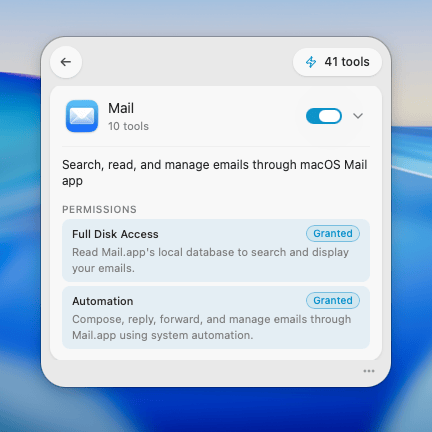
To see which permissions are needed or granted:
- Open Macuse from your menu bar
- Click the Tools card
- Click the arrow next to any toolbox to expand it
- Permission status is shown with "Granted" or "Required" badges
Permission Types
| Permission | Required For | How to Grant |
|---|---|---|
| Calendars | Calendar | System Settings → Privacy & Security → Calendars |
| Reminders | Reminders | System Settings → Privacy & Security → Reminders |
| Contacts | Contacts | System Settings → Privacy & Security → Contacts |
| Full Disk Access | Mail, Notes, Messages, Stickies | System Settings → Privacy & Security → Full Disk Access |
| Automation | Mail, Notes, Messages | System Settings → Privacy & Security → Automation |
| Accessibility | UI Viewer, UI Controller, Stickies | System Settings → Privacy & Security → Accessibility |
| Screen Recording | UI Viewer (capture_snapshot) | System Settings → Privacy & Security → Screen Recording |
| Location Services | Location | System Settings → Privacy & Security → Location Services |
Granting Permissions
Standard Permissions
For Calendar, Reminders, and Contacts:
- Macuse will prompt you when first accessing these features
- Click "Allow" in the system dialog
- The permission is granted immediately
Full Disk Access
Required for reading Mail, Notes, Messages, and Stickies databases:
- Open System Settings → Privacy & Security → Full Disk Access
- Click + and add Macuse.app from Applications
- Restart Macuse for changes to take effect
Automation
Required for Mail, Notes, and Messages write operations (composing emails, creating notes, sending messages):
- Macuse will prompt you when first performing a write operation
- Click "Allow" in the system dialog to grant access to the specific app
- The permission is granted immediately
Alternatively, you can grant access manually:
- Open System Settings → Privacy & Security → Automation
- Find Macuse in the list
- Enable access for Mail.app, Notes.app, and/or Messages.app
Accessibility
Required for UI inspection and control:
- Open System Settings → Privacy & Security → Accessibility
- Click + and add Macuse.app from Applications
- No restart required
Screen Recording
Required for capturing window screenshots with capture_snapshot:
- Open System Settings → Privacy & Security → Screen Recording
- Click + and add Macuse.app from Applications
- Restart Macuse for changes to take effect
Permission States
Each permission can be in one of these states:
- Granted - Full access to the feature
- Limited - Partial access (e.g., add-only for Calendar)
- Denied - Access was explicitly denied
- Not Determined - Not yet requested
Revoking Permissions
To revoke a permission:
- Open System Settings → Privacy & Security
- Select the permission category
- Uncheck or remove Macuse from the list
Troubleshooting
If a permission isn't working:
- Ensure Macuse is added to the correct permission list
- Try removing and re-adding Macuse
- Restart Macuse after changing Full Disk Access
- Check that System Settings shows Macuse as enabled