
Interactive Tools (MCP Apps)

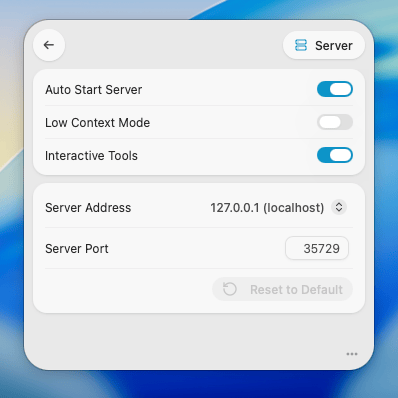
Interactive Tools display your emails, calendar events, notes, and reminders as visual cards directly in your AI chat. Instead of plain text dumps, you see scannable previews you can click to open in native Mac apps.
Visual Cards, Not Text Dumps
When you ask about your emails, calendar, notes, or reminders, you see actual cards:
- Emails show sender avatars, subjects, and timestamps in a scannable list
- Calendar events appear in a familiar month grid
- Reminders have checkboxes you can interact with
- Notes display with their real formatting
It's the difference between reading a spreadsheet and using an app designed for humans.
Click to Open in Your Mac Apps
See an email you need to deal with? Click it. Mail.app opens to that exact message.
The same works for everything:
- Calendar events open in Calendar.app
- Reminders open in Reminders.app
- Notes open in Notes.app
One click. The right app. The exact item.
Interactive Conversations
The AI watches what you do and responds:
- Click an email preview → the full message content loads into the chat automatically
- Check off a reminder → it's marked complete instantly
- Tap a calendar event → ask the AI to reschedule it, and it already knows which event you mean
You're not switching between "looking at things" mode and "talking to AI" mode. It's one continuous flow.
Supported Clients
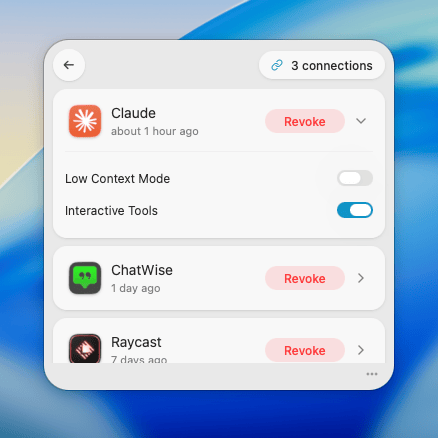
Interactive Tools work in any AI client that supports Macuse:
- Claude (web and desktop)
- ChatGPT
- Goose
- VS Code
Same experience. Same cards across all your tools.
Try It
Ask your AI assistant:
- "Show my emails from today"
- "What's on my calendar this week?"
- "List my reminders"
- "Find notes about the project"
Then click on something to open it in the native app.