
Clients
Claude Desktop
Automatic Setup
- Open Macuse from your menu bar
- Click the Server card
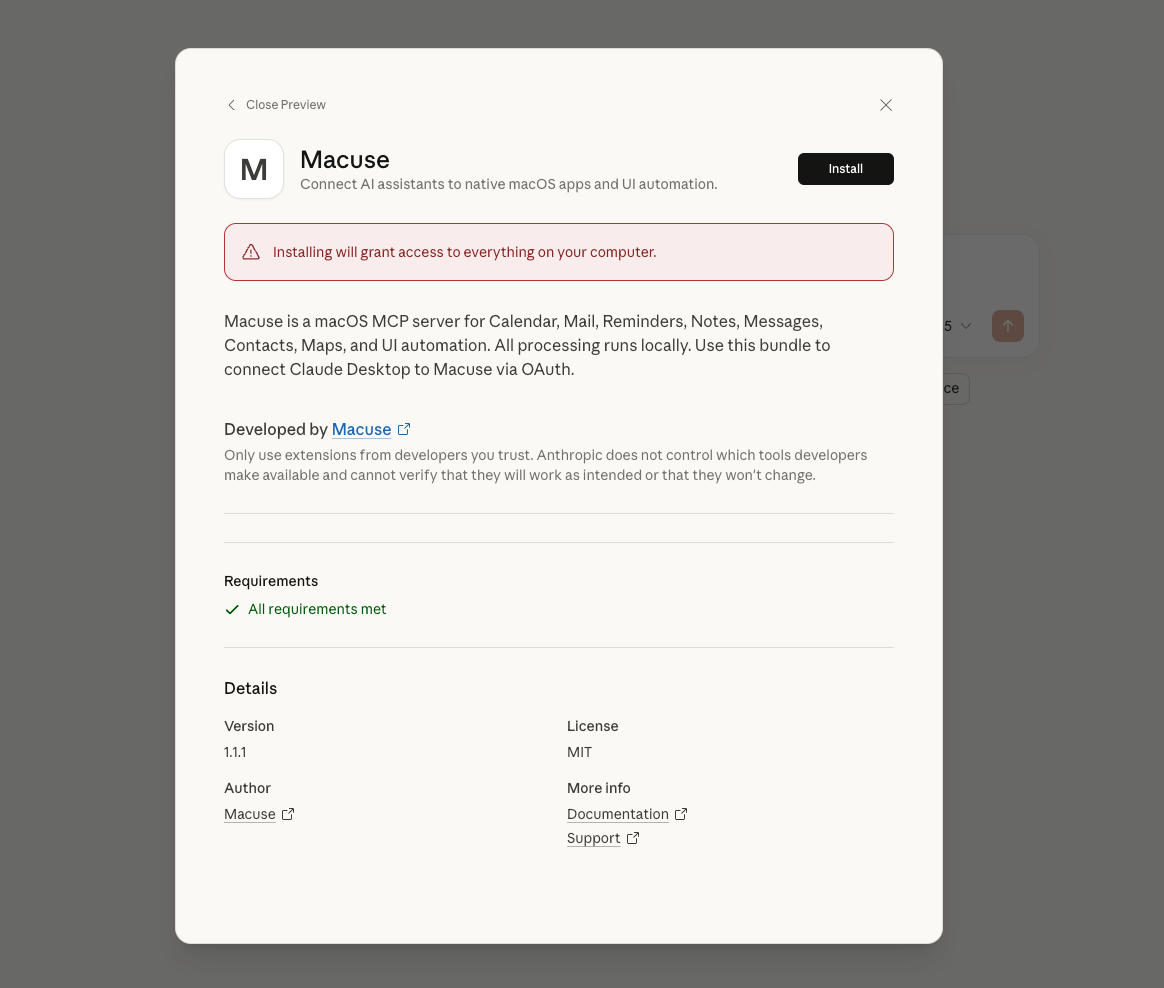
- Under Quick Setup, click the Install button next to Claude Desktop
- Macuse will download and open a
.mcpb(MCP Bundle) file - Claude Desktop will prompt you to confirm the installation
- Restart Claude Desktop to apply changes
Manual Configuration
If automatic setup doesn't work, you can manually edit the configuration file:
Config file: ~/Library/Application Support/Claude/claude_desktop_config.json
{
  "mcpServers": {
    "macuse": {
      "command": "/Applications/Macuse.app/Contents/MacOS/macuse",
      "args": ["mcp"]
    }
  }
}
Save the file and restart Claude Desktop.
Verifying the Connection
- Open Claude Desktop and start a new conversation
- Ask Claude to "list available Macuse tools"
- If configured correctly, Claude will show the available toolboxes