
API Keys
Some AI apps don't support OAuth (e.g., Cursor, Windsurf). For these apps, Macuse provides API Key authentication as an alternative to the standard OAuth flow.
How It Works
When a non-OAuth client connects to Macuse, it needs an API key. The API key is used in the Authorization header:
Authorization: Bearer <your_api_key>You can create an API key manually from Settings, or let Macuse detect non-OAuth clients automatically.
Creating an API Key
- Open Macuse Settings → Connections
- Click the + button
- Enter a name for the connection (e.g., "Cursor", "Windsurf")
- Click Create
- Copy the API key immediately — it is only shown once and the dialog auto-closes after 30 seconds
Automatic Detection
If you don't create an API key manually, Macuse can detect non-OAuth clients automatically:
- Configure your AI app with the Macuse server URL (without the
headersfield first) - Start your AI app and let it attempt to connect
- After 3 failed connection attempts, Macuse will detect it doesn't support OAuth
- A popup appears asking you to generate an API key
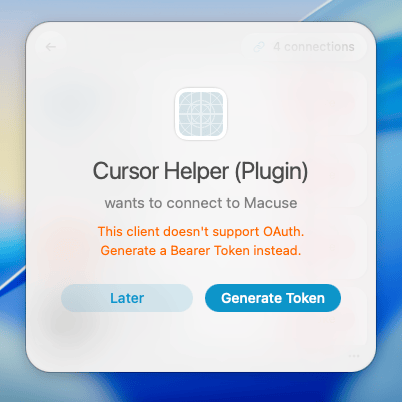
- Click Generate Token to create a new API key
- Copy the configuration snippet shown in the popup
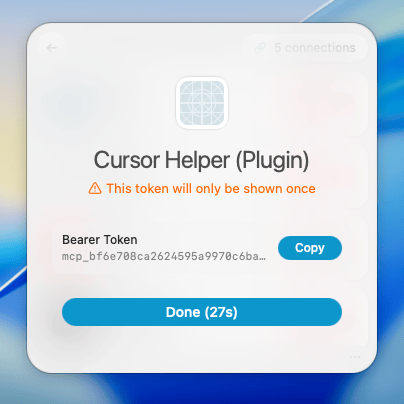
- Update your app's config file with the complete configuration including the
Authorizationheader - Restart your AI app
Configuration
Add this to your AI app's MCP configuration:
{
  "mcpServers": {
    "macuse": {
      "url": "http://127.0.0.1:35729/mcp",
      "headers": {
        "Authorization": "Bearer <your_api_key>"
      }
    }
  }
}
Replace <your_api_key> with the actual API key (starts with mcp_).
Managing Connections
You can view and revoke connections in Macuse Settings under Connections. Each connection shows the client name, last used time, and a Revoke button.
To revoke a connection, click the Revoke button next to it. Revoked API keys immediately stop working — you'll need to create a new API key or reconnect your AI app to trigger automatic detection.
Security
- API keys are stored securely — Only a hash of each key is stored in an encrypted database
- API keys are shown once — The full key is only displayed when created; copy it immediately
- Localhost only — The server binds to
127.0.0.1by default, so API keys can only be used locally
Troubleshooting
Connection Refused
Make sure Macuse is running and the server is active:
- Check the Macuse menu bar icon
- Verify the server address in Settings matches your configuration
Invalid API Key
- Verify you copied the complete API key
- Check that the connection hasn't been revoked in Macuse Settings
- If the connection was revoked, create a new API key from Settings → Connections
No Popup Appears
If Macuse doesn't prompt you to generate an API key:
- Make sure Macuse is running
- Verify your AI app is configured with the correct server URL
- Restart your AI app and let it retry connecting a few times
- Check that no existing valid API key is already configured