
Low Context Mode
Low Context Mode is designed for AI apps with limited context windows. Instead of exposing all 50+ tools at once, Macuse provides two meta-tools that let the AI discover and call tools on demand.
When to Use
Enable Low Context Mode when:
- Your AI app has a small context window
- You're using local LLMs (e.g., via LM Studio, Ollama)
- The AI struggles with too many tool definitions
Most cloud-based AI apps (Claude, ChatGPT, etc.) have large context windows and don't need this mode.
How It Works
When Low Context Mode is enabled, Macuse exposes only two meta-tools:
| Tool | Purpose |
|---|---|
get_tool_definitions | Discover available tools and their parameters |
call_tool_by_name | Execute any tool by name |
This reduces the initial context overhead while maintaining access to all functionality.
Two-Step Workflow
The AI follows a discover-then-call pattern:
Step 1: Discover tools
{
  "tool": "get_tool_definitions",
  "arguments": {
    "names": ["calendar_*"]
  }
}
Response includes simplified tool definitions with an example call:
[
  {
    "name": "calendar_create_event",
    "description": "Create a calendar event with title, time, and optional details.",
    "parameters": [
      {
        "name": "title",
        "param_type": "string",
        "required": true,
        "description": "The title of the event"
      },
      {
        "name": "start_date",
        "param_type": "string",
        "required": true,
        "description": "Start date and time in ISO 8601 format"
      },
      {
        "name": "end_date",
        "param_type": "string",
        "required": true,
        "description": "End date and time in ISO 8601 format"
      }
    ],
    "example_call": {
      "tool": "call_tool_by_name",
      "arguments": {
        "name": "calendar_create_event",
        "arguments": {
          "title": "<title>",
          "start_date": "<start_date>",
          "end_date": "<end_date>"
        }
      }
    }
  }
]
Each parameter includes:
| Field | Description |
|---|---|
name | Parameter name |
param_type | Data type (string, integer, boolean, array, object) |
required | Whether the parameter is required |
description | Optional description of the parameter |
The example_call field provides a ready-to-use template for calling the tool.
Step 2: Call the tool
{
  "tool": "call_tool_by_name",
  "arguments": {
    "name": "calendar_create_event",
    "arguments": {
      "title": "Team Meeting",
      "start_date": "2025-01-15T10:00:00",
      "end_date": "2025-01-15T11:00:00"
    }
  }
}
Pattern Matching
The get_tool_definitions tool supports wildcards:
| Pattern | Matches |
|---|---|
* | All tools |
calendar_* | All calendar tools |
calendar_create_event | Exact tool name |
Enabling Low Context Mode
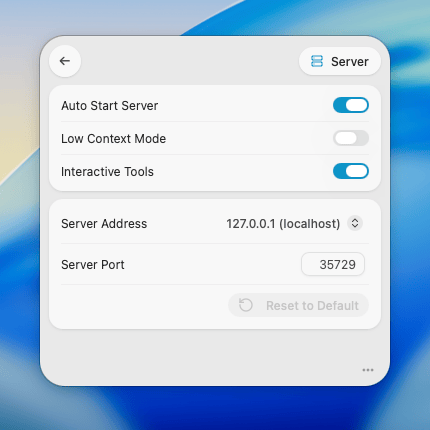
Per-Connection
- Open Macuse Settings
- Go to Connections
- Find your AI app's connection
- Toggle Low Context Mode on
Default for New Connections
To enable Low Context Mode by default for all new connections:
- Open Macuse Settings
- Go to MCP Server
- Enable Default Low Context Mode
New OAuth clients and API keys will have Low Context Mode enabled automatically.
This setting only affects new connections. Existing connections will retain their current Low Context Mode setting. To change the mode for an existing connection, go to Connections and toggle it individually.
Troubleshooting
AI Can't Find Tools
If the AI reports it can't find tools:
- Verify Low Context Mode is enabled for the connection
- Have the AI call
get_tool_definitionswithnames: ["*"]to list all available tools - Check that the requested toolboxes are enabled in Macuse Settings
Tools Return Errors
If call_tool_by_name returns errors:
- Ensure the AI used the exact tool name from
get_tool_definitions - Verify all required parameters are provided
- Check parameter types match the schema (strings for dates, etc.)